
Find a trip
Open Trips and tap the month at the top to choose another month. Select All, Unclassified, Business or Personal to filter that month’s completed trips. The Unclassified count shows how many still need a classification.
Journeys are grouped by day. Tap Load more Trips when it appears to see more history. With larger text sizes, the classification choices may appear in a Filter menu.
Choose a list view
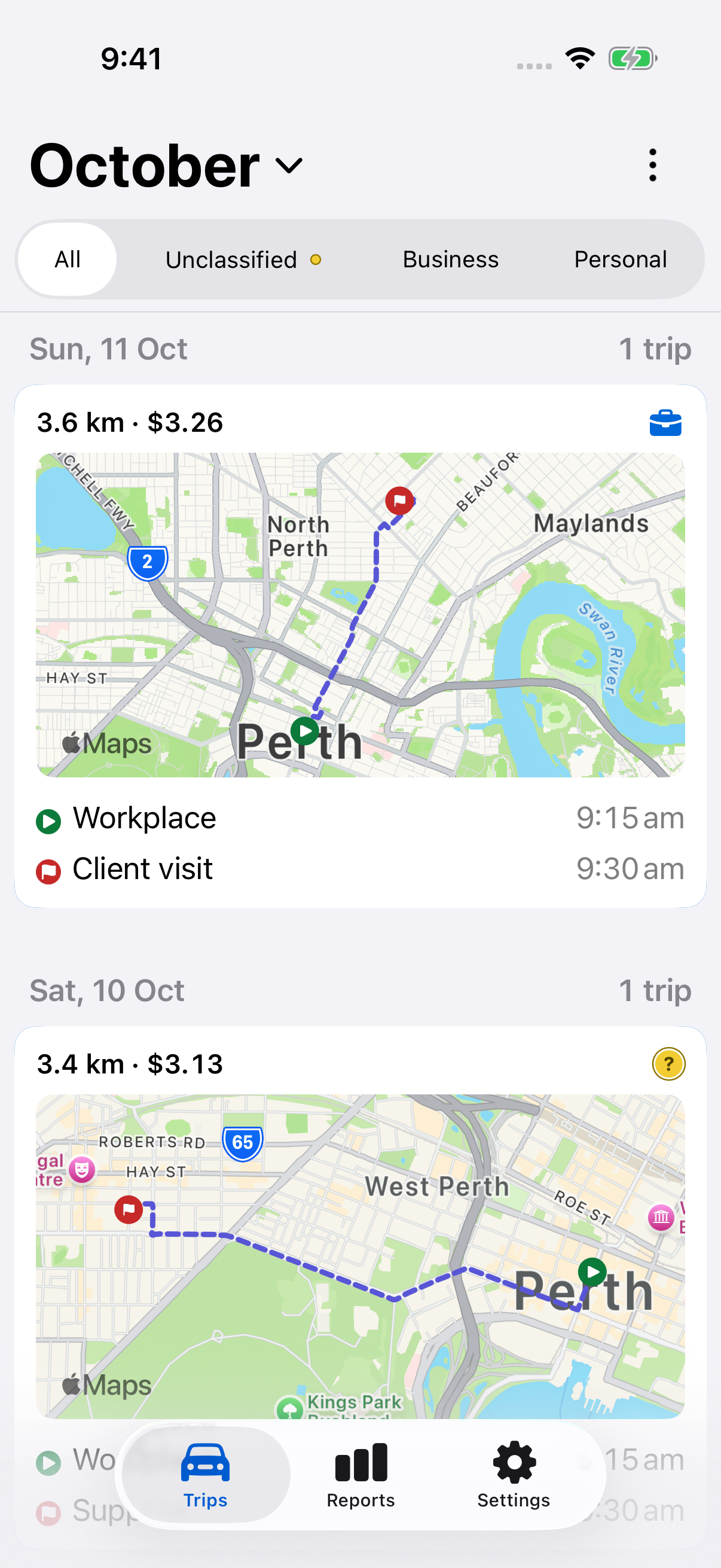
Tap the vertical three-dot Trip options button and choose Expanded or Compact. Expanded gives the route map more space; Compact uses a small map and fits more journeys on screen. LogMetric remembers your choice.
The same menu includes Auto Tracking, Start Trip and Add Trip. Use automatic tracking, manual recording or manual entry as appropriate.
Read the trip card
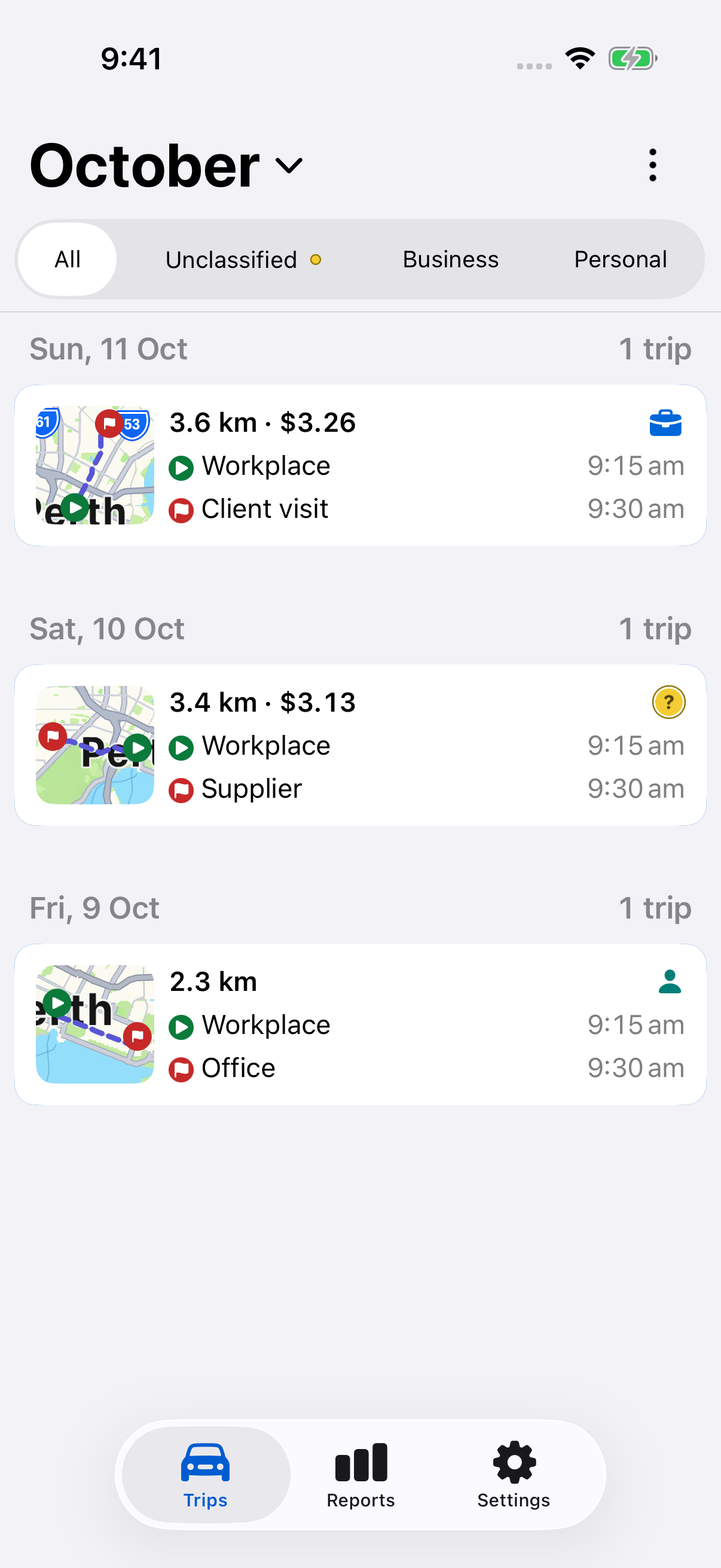
| Item | Meaning |
|---|---|
| Green play marker | Starting location and time. |
| Red flag | Ending location and time; another date appears for an overnight journey. |
| Briefcase | Business classification. |
| Person | Personal classification. |
| Question mark | Unclassified. |
| Kilometres | Saved trip distance. |
| Dollar value | Estimate using the selected rate method; a dash means unavailable. Personal trips and Logbook mode do not show a trip value. |
A value on an Unclassified trip is pending classification, not a claim amount. Financial-year calculations belong in Reports, and the method is controlled by Rates.
A current-trip card appears separately with recording status, elapsed time and distance. Tap Stop there after parking to finish it, or tap the card to open its details. A trip that is finishing may remain visible while it saves.
Read Trip Details
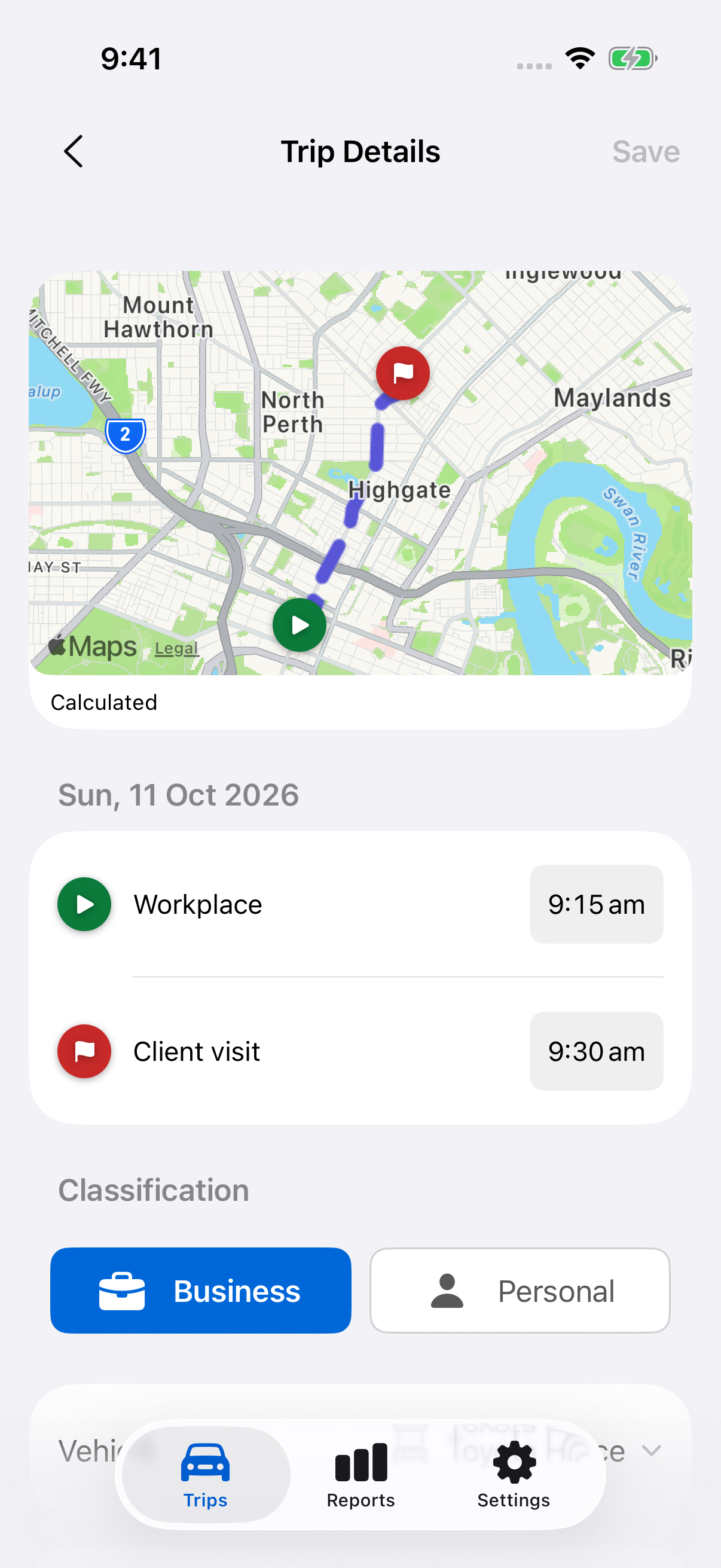
Tap a trip to open Trip Details. Scroll to see all its fields.
| Field | What to check |
|---|---|
| Route | Solid sections are Recorded; dashed sections are Calculated. Gaps remain gaps rather than a claimed path. |
| Start and End | Places, dates and times. |
| Classification | Business, Personal or Unclassified. |
| Vehicle | Assigned after completion; change it if needed. |
| Tags | Optional labels for clients, projects or other groups. |
| Distance and Duration | Saved kilometres and time between the start and end. A manually corrected distance is labelled as entered by you. |
| Created by | Automatic, Manual recording, Manual entry or Unknown; “edited” marks a factual correction. |
| Classified by | You, the rule name, Not classified or Unknown. |
| Applied rules | Appears when rules took action; open it to see their saved classification, vehicle or tag actions. |
| Notes | Optional text explaining the journey. |
For an edited recorded trip, View original recording shows preserved recording facts. It does not restore them.
Save changes to a trip
Changes made in Trip Details save together with the top-right Save button. Done in a time or tag editor returns to the trip; it does not save the whole trip.
Locations, times and distance can be changed after recording and finalisation finish. Follow the editing guide for corrections, or classify with a swipe directly from the list.
Still need help?
If you can’t find what you’re looking for, we’re here to help.
Contact us