
Start a recording
- Open Trips before setting off.
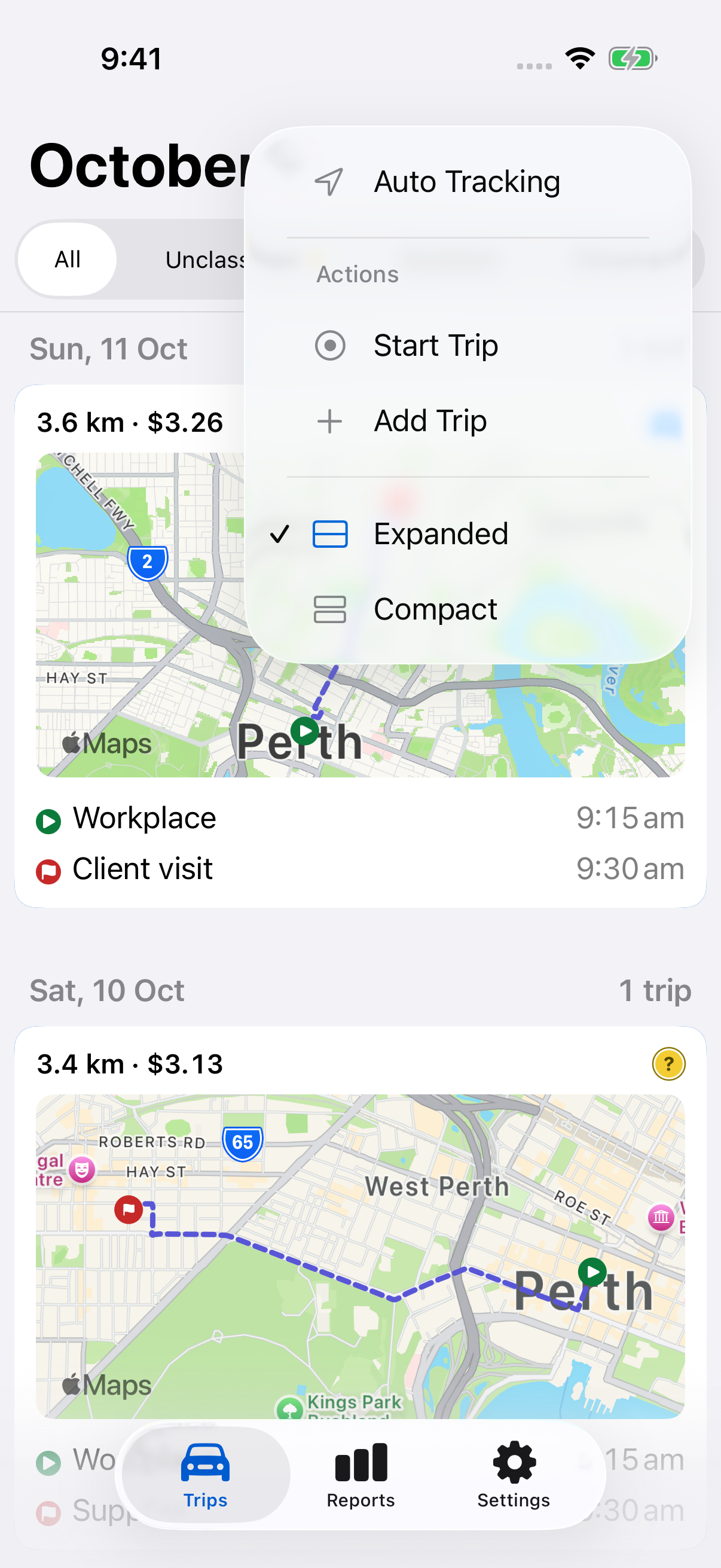
- Tap the vertical three-dot Trip options button.
- Tap Start Trip.
If the menu shows Allow Location or Open Settings, allow location access and return to start the trip. Keep Precise Location enabled for accuracy. Only one trip can be current at a time.
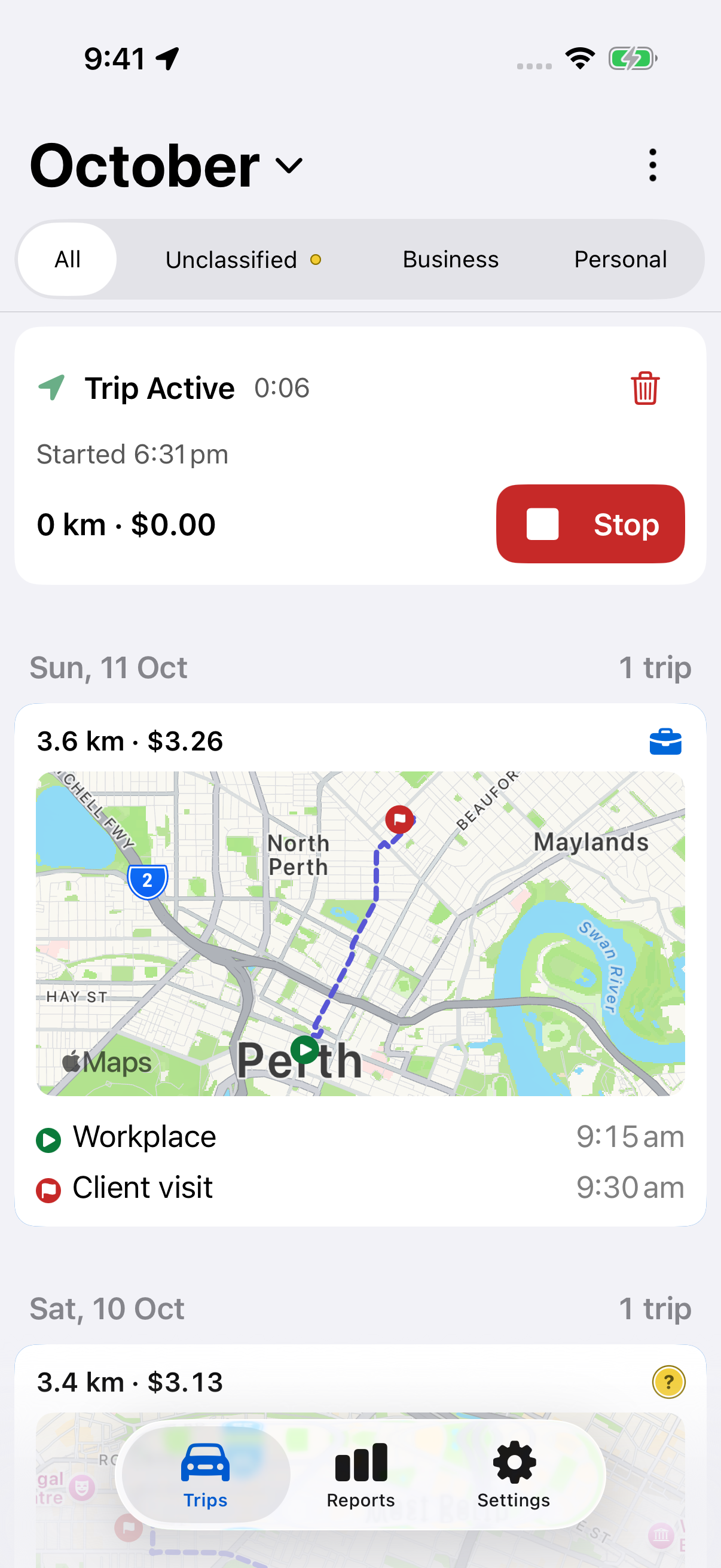
The current-trip card shows the recording status, start time, elapsed time and distance. Leave LogMetric running in the background during the journey.
Stop and review the trip
- After parking, open Trips.
- Tap Stop on the current-trip card.
- Allow the trip to finish saving, then open it.
- Check its route, times, distance and vehicle. Add a classification, notes or tags, then tap Save for any changes.
Created by: Manual recording identifies a trip you started yourself. Its vehicle is assigned when it finishes. Automation rules do not run on manually started trips.
You can also stop an automatically started trip with this control. That trip remains automatic, and its rules can still run at completion.
Cancel an unwanted recording
Tap the trash icon on the current card (Cancel Trip), then confirm Cancel and Delete Trip. This removes the current trip and its recorded route. Choose Keep Recording to return without deleting it.
To remove a completed trip, use Delete in Trip Details. To enter a journey that was never recorded, add a missing trip.
Still need help?
If you can’t find what you’re looking for, we’re here to help.
Contact us