
Turn on automatic tracking
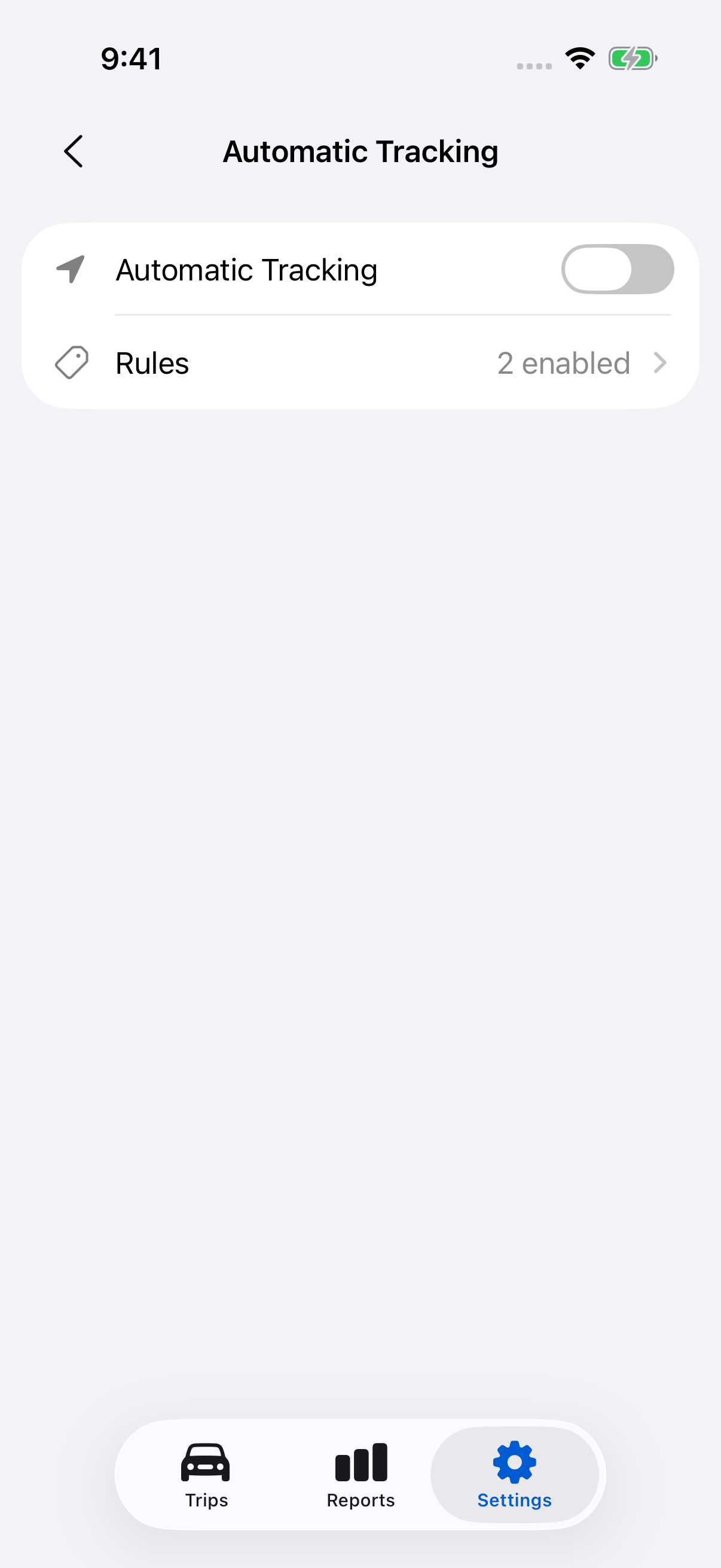
- Open Settings → Automatic Tracking in LogMetric.
- Turn on Automatic Tracking.
- If access is requested, follow the next section. After granting it, return and turn the switch on again.
You can also use Trips → Trip options → Auto Tracking. The switch is unavailable while a trip is current; finish that trip first.
Allow the required access
Automatic tracking requires Always location access and Motion & Fitness. Check them in Settings → Permissions in LogMetric.
- Open Location or Background location. Allow Always access. iOS may ask for While Using first; follow the prompts and open your iPhone’s Settings when directed.
- Open Motion & Fitness and allow access.
- Keep Precise Location enabled for better route accuracy.
- Return to Settings → Automatic Tracking and enable the switch again.
If you previously denied access, use the permission row to open the relevant iPhone settings. If Location Services are off for the whole phone, turn them on first.
Notifications are optional. They provide recording alerts. Use the separate Trip notifications setting to control start and finish alerts.
Check a completed trip
Leave LogMetric running in the background during a drive. You can lock the phone or use another app while it records.
- After parking, open Trips.
- Allow the trip to finish saving, then tap it.
- Review the route, times, distance and vehicle. Created by: Automatic identifies an automatically started recording.
Swiping the app away stops automatic detection. Reopen it before the next drive. Detection and route accuracy depend on the available motion and location evidence; use the troubleshooting guide if a trip is missing or incomplete.
Add rules or turn tracking off
Automation rules can classify, assign a vehicle and add tags when an automatic trip finishes. Review the results in Trip Details.
To stop automatic detection for future journeys, finish any current trip and turn off Automatic Tracking. You can still start and stop a recording manually.
Still need help?
If you can’t find what you’re looking for, we’re here to help.
Contact us