
Create a rule
- Open Settings → Automatic Tracking → Rules.
- Tap + and optionally name the rule.
- Choose one or more Actions: classification, vehicle or tags.
- Set a Location condition, Days condition or both.
- Tap Save and check that the rule is enabled in the list.
Rules run once, when an automatically started trip finishes. They also run if you stop that automatic trip manually. Manually started recordings and manual entries do not receive rules.
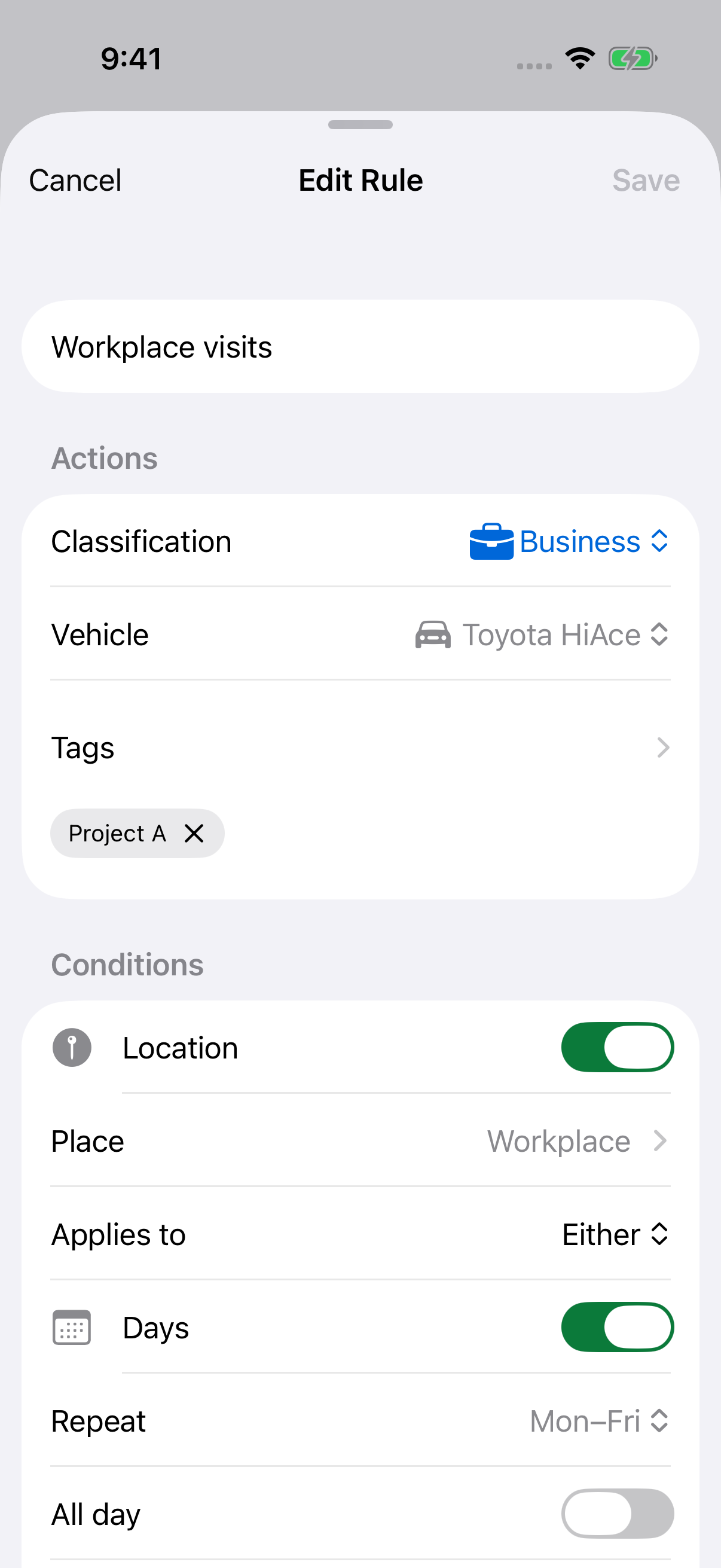
Set location and schedule conditions
Turn on Location, choose a Place and set Applies to to Start, End or Either. Create the saved location if it is not available yet.
Turn on Days and choose weekdays under Repeat. Leave All day on, or turn it off and set From and Until. The schedule checks the trip’s start time in its saved time zone, not its arrival time.
If Until is earlier than From, the range ends the next day. For example, Monday 22:00 to 06:00 includes trips starting early Tuesday before 06:00. Monday is the selected day because it starts the overnight range.
When Location and Days are both enabled, a trip must match both. There is no detected-vehicle condition; vehicle selection is an action applied after a match.
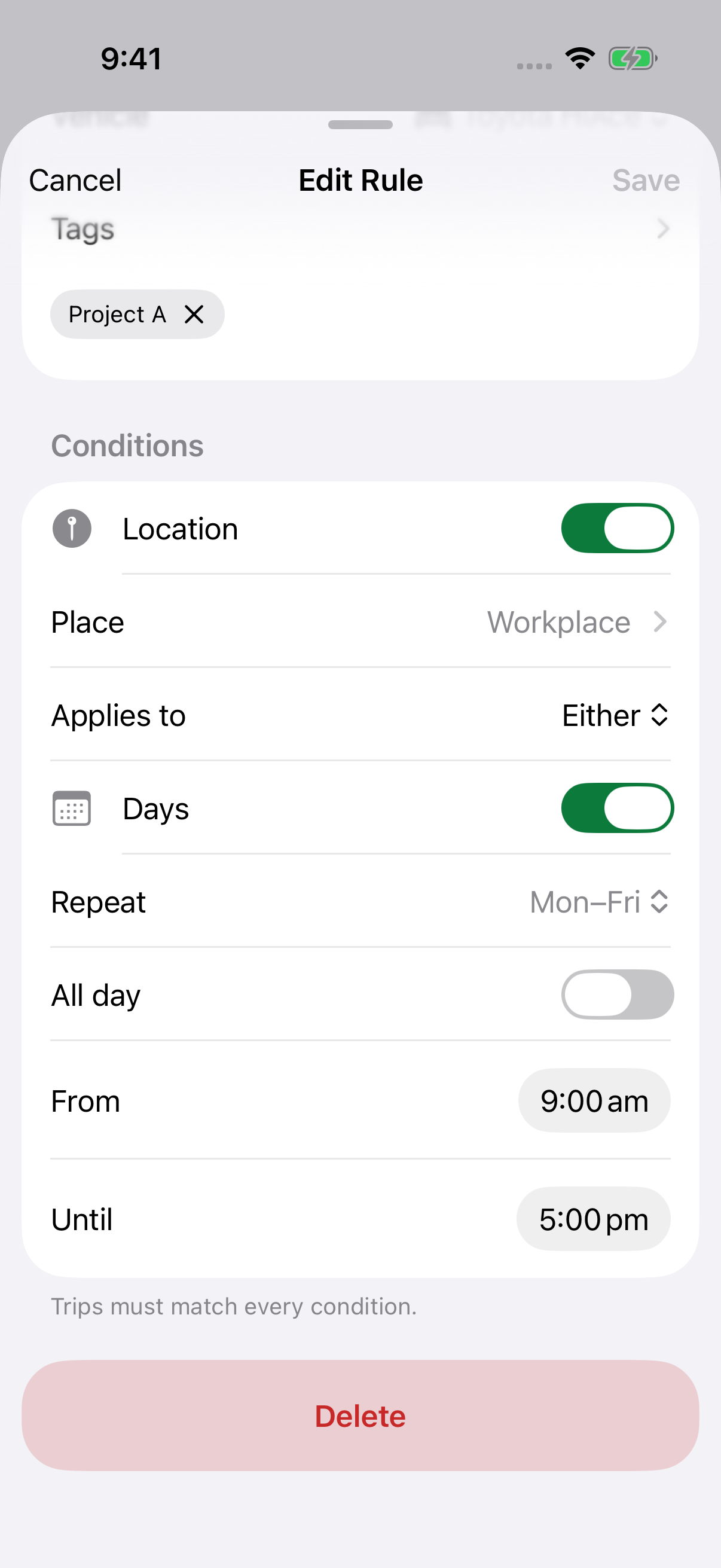
Choose classification and tag actions
Set Classification to Business, Personal or No change. Use No change for a rule that only assigns a vehicle or adds tags.
In Tags, select one or more labels and tap Done, then save the rule. Create tags for recurring clients or projects. Matching rules add tags without duplicating a tag already on the trip.
A classification you selected manually is kept. The rule can still assign a vehicle and add tags to that automatic trip.
Assign a vehicle
Choose a vehicle under Actions → Vehicle. For example, use a weekday schedule to assign your work vehicle to matching automatic trips. Add the vehicle first if needed.
At completion, the first enabled matching rule with an available vehicle assigns it. If none supplies a valid vehicle, LogMetric uses the default vehicle. The action does not change that default.
Set the rule order
Hold and drag rules to reorder them. Order is evaluated separately for each action:
- Classification: the first enabled matching rule with a classification wins, unless you classified the trip manually.
- Vehicle: the first enabled matching rule with a valid vehicle wins independently of classification.
- Tags: tags from every enabled matching rule accumulate without duplicates.
A location rule has no automatic priority over a schedule rule. Put the preferred classification and vehicle rules earlier. Different rules can supply those two actions to the same trip.
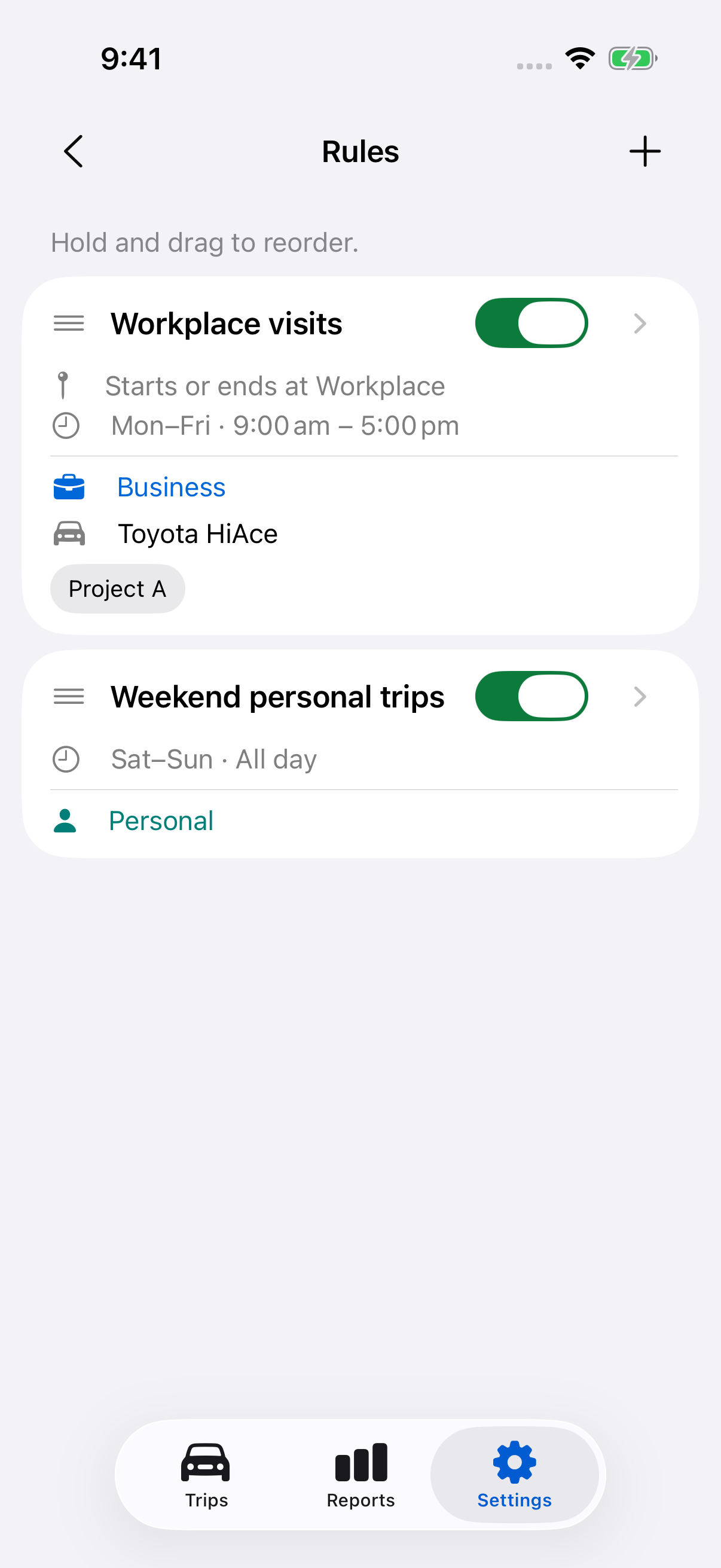
Check results and maintain rules
Open a completed automatic trip. Classified by identifies its classification source, and Applied rules shows the actions that actually ran. These are saved history, so later renaming or deleting a rule does not rewrite the record.
To edit a rule, tap it, make changes and tap Save. Use its switch to enable or disable it immediately. Delete it from its editor or swipe left in the rule list and confirm Delete.
Creating, changing, reordering or enabling rules does not reapply them to completed trips. Correct existing trips separately. Disabling a rule keeps its references. Before archiving its vehicle or deleting its tag or location, change the rule to remove that reference or delete the rule.
Still need help?
If you can’t find what you’re looking for, we’re here to help.
Contact us