
Add or update a vehicle
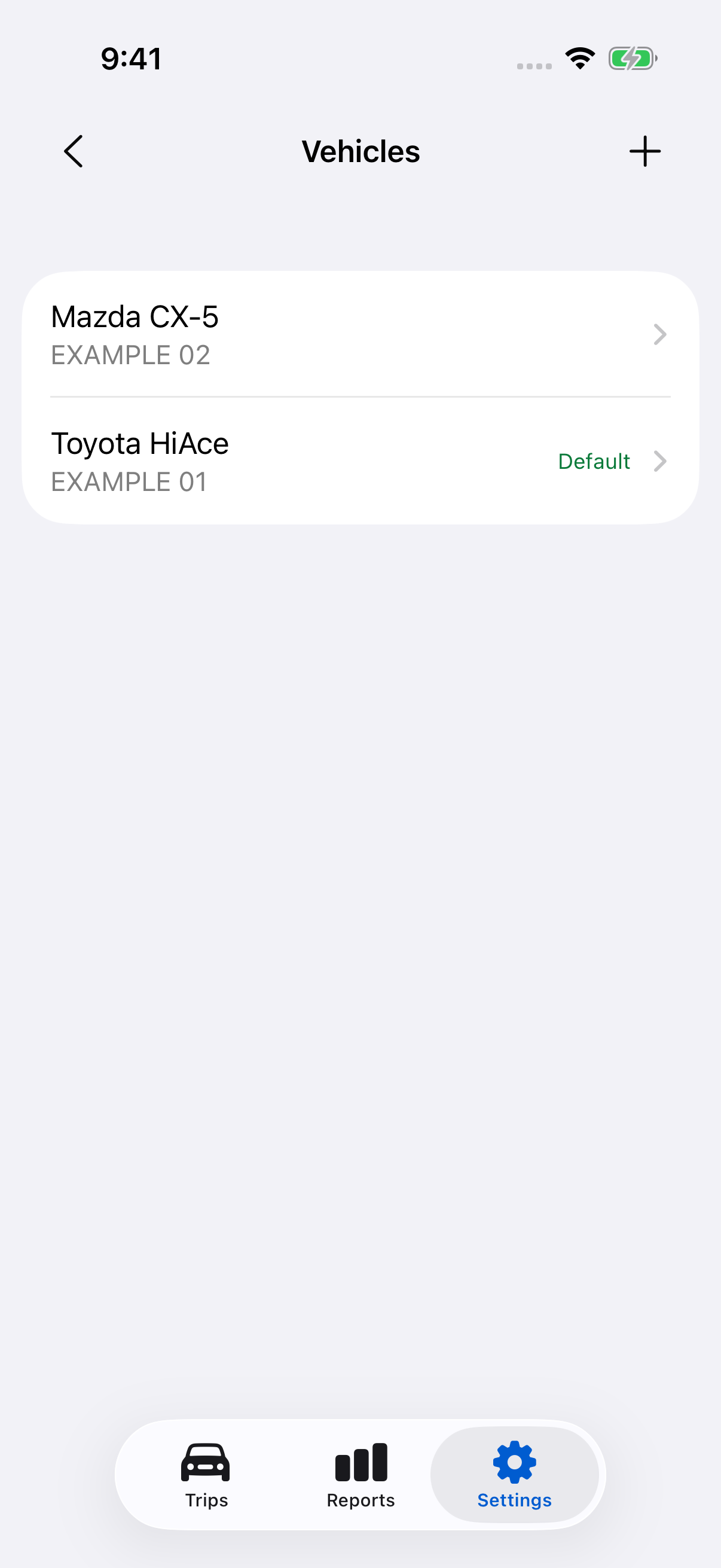
LogMetric starts with My Vehicle. Open Settings → Vehicles to update it or add another.
- Tap an existing vehicle, or tap + to add one.
- Enter its Name and optional Registration.
- Tap Save.
Choose names that distinguish your vehicles. Add an actual odometer reading from the vehicle’s detail screen.
Choose the default vehicle
Open the vehicle you want to use and tap Make default vehicle. The change applies immediately, and the vehicle is marked Default in the list. There must always be a default; choose another to replace it.
Recorded trips receive their vehicle when they finish. The default is used when no valid vehicle action applies. Changing the default does not move completed trips to another vehicle.
For regular patterns, assign a vehicle with an automation rule. A rule assigns a vehicle to a matching automatic trip without changing your default.
Correct a trip’s vehicle
Open a completed trip, choose its Vehicle and tap Save. Check its report totals and odometer estimates after the change.
When adding a missing trip, check the selected vehicle before saving the entry.
Archive a vehicle
In Settings → Vehicles, swipe left on a vehicle and choose Archive. Archiving removes it from the active vehicle choices while retaining its historical records.
The default vehicle cannot be archived; make another vehicle the default first. If a vehicle is referenced by any rule, including a disabled rule, change or delete those rules before archiving it.
Still need help?
If you can’t find what you’re looking for, we’re here to help.
Contact us