
Open the trip and make corrections
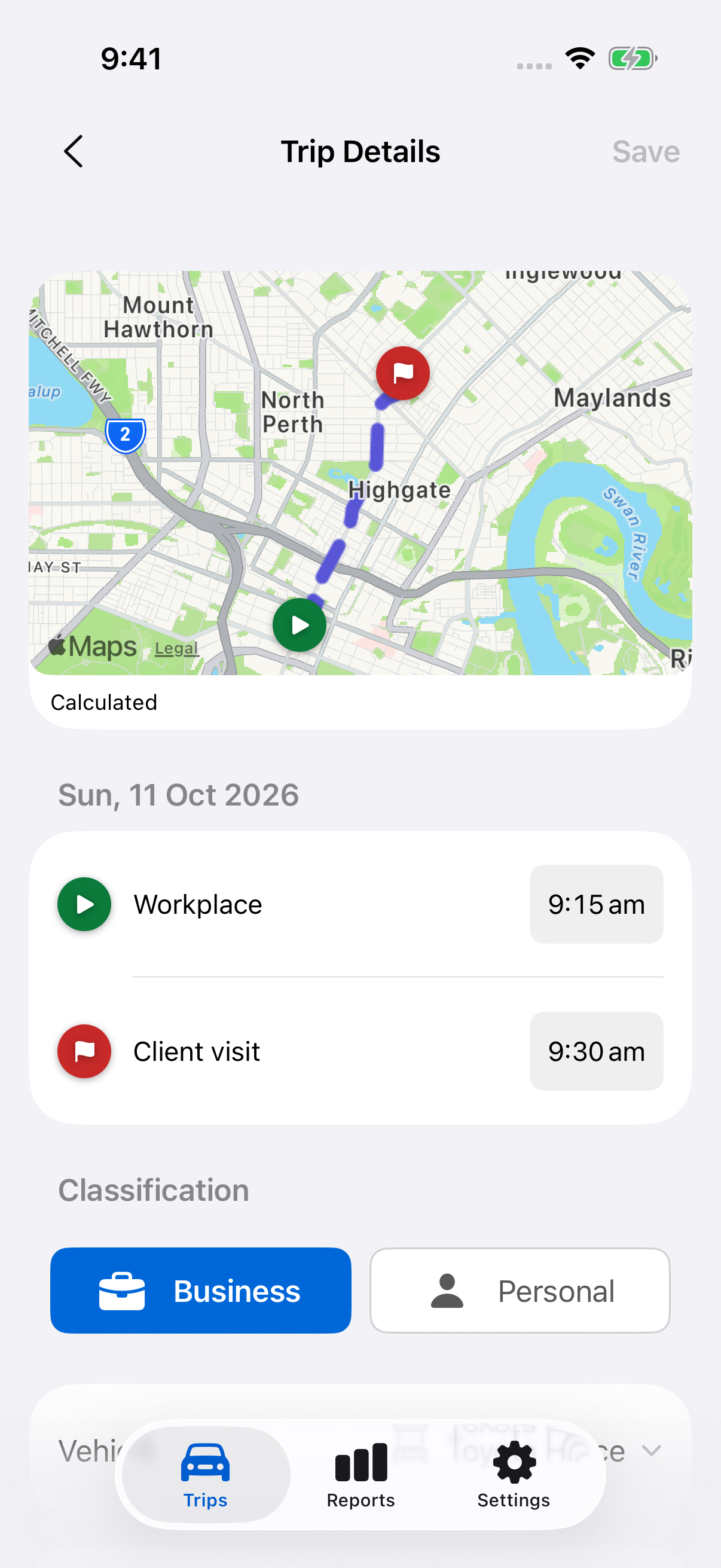
- Open Trips, choose the month and tap the trip.
- Tap a start or end time to change its date and time. The end must be after the start.
- To correct a place, tap its address, choose the endpoint and confirm the resulting route with Done. New searches and route calculations need a connection.
- Check Distance (km). Enter a supported correction if necessary; it will be labelled Distance entered by you.
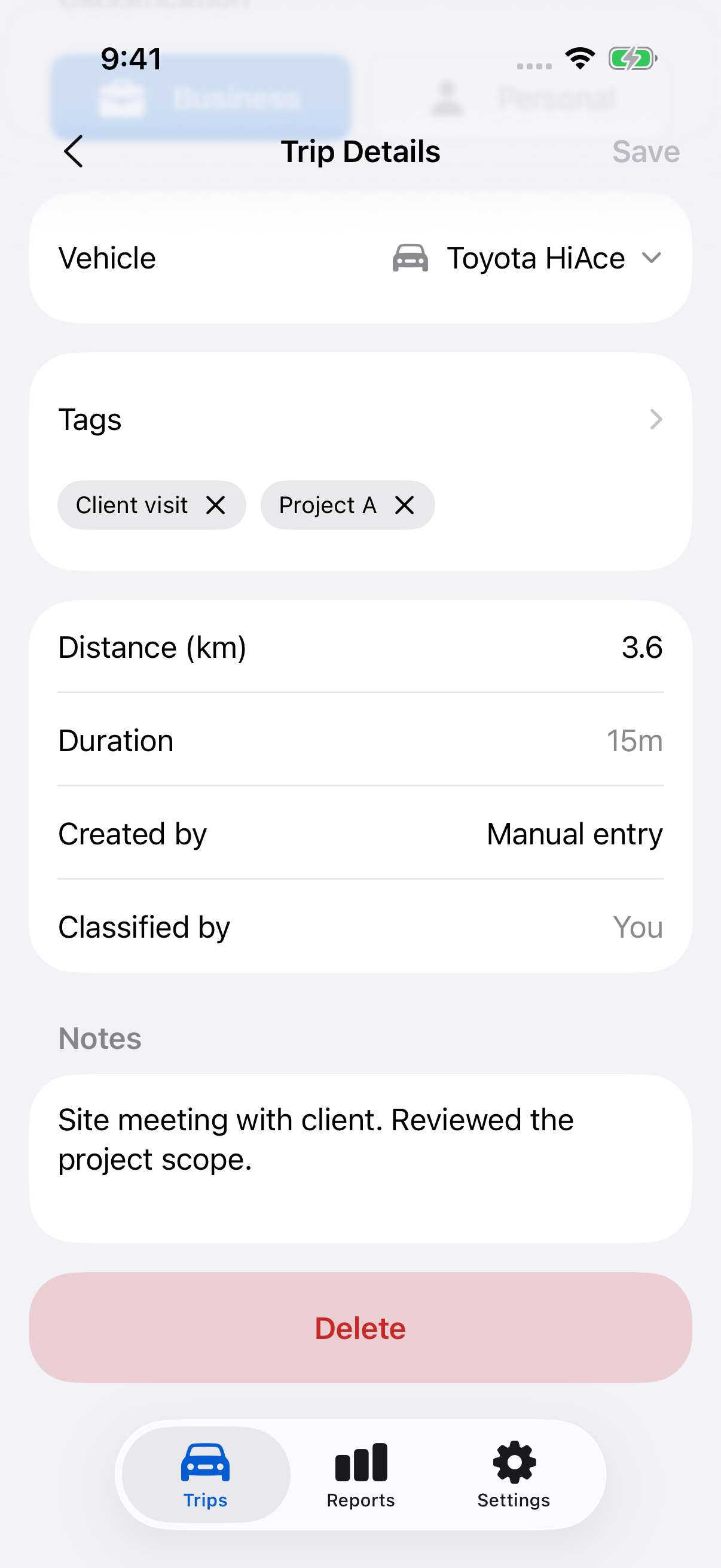
Locations, times and distance are locked until the trip finishes recording and saving. You can also change its classification, vehicle, tags or notes. The Vehicle field appears after completion.
Save all changes
Tap the top-right Save button to save the trip’s changes together. Done in a picker only confirms that part of the edit.
If you leave with unsaved changes, choose Save Changes, Discard Changes or Cancel. Save is unavailable if the edited times, distance or route are invalid.
Changing the vehicle, start date, distance or classification can change report results and calculated odometer estimates. Check them after a correction.
Check the original recording
After factual changes to a recorded trip, Created by includes “edited” and View original recording becomes available. Open it to compare the preserved facts with your changes.
Recorded route sections use solid lines; calculated sections use dashed lines. The original view is a reference, not a restore command. Manual entries have a calculated route rather than an original GPS recording.
Delete a completed trip
- Open Trip Details and scroll to the bottom.
- Tap the red Delete action.
- Confirm Delete.
Deletion permanently removes the trip and its route. To abandon an active recording instead, use Cancel Trip on its current-trip card.
Still need help?
If you can’t find what you’re looking for, we’re here to help.
Contact us