
Add or change a note
- Open Trips and tap the journey.
- Scroll to Notes.
- Tap Add a note…, or edit the existing text.
- Tap the top-right Save button.
The keyboard’s Done button dismisses the keyboard; Save commits the note together with any other trip changes. To remove a note, clear its text and tap Save.
You can also enter a note while adding a missing trip, then save the new entry.
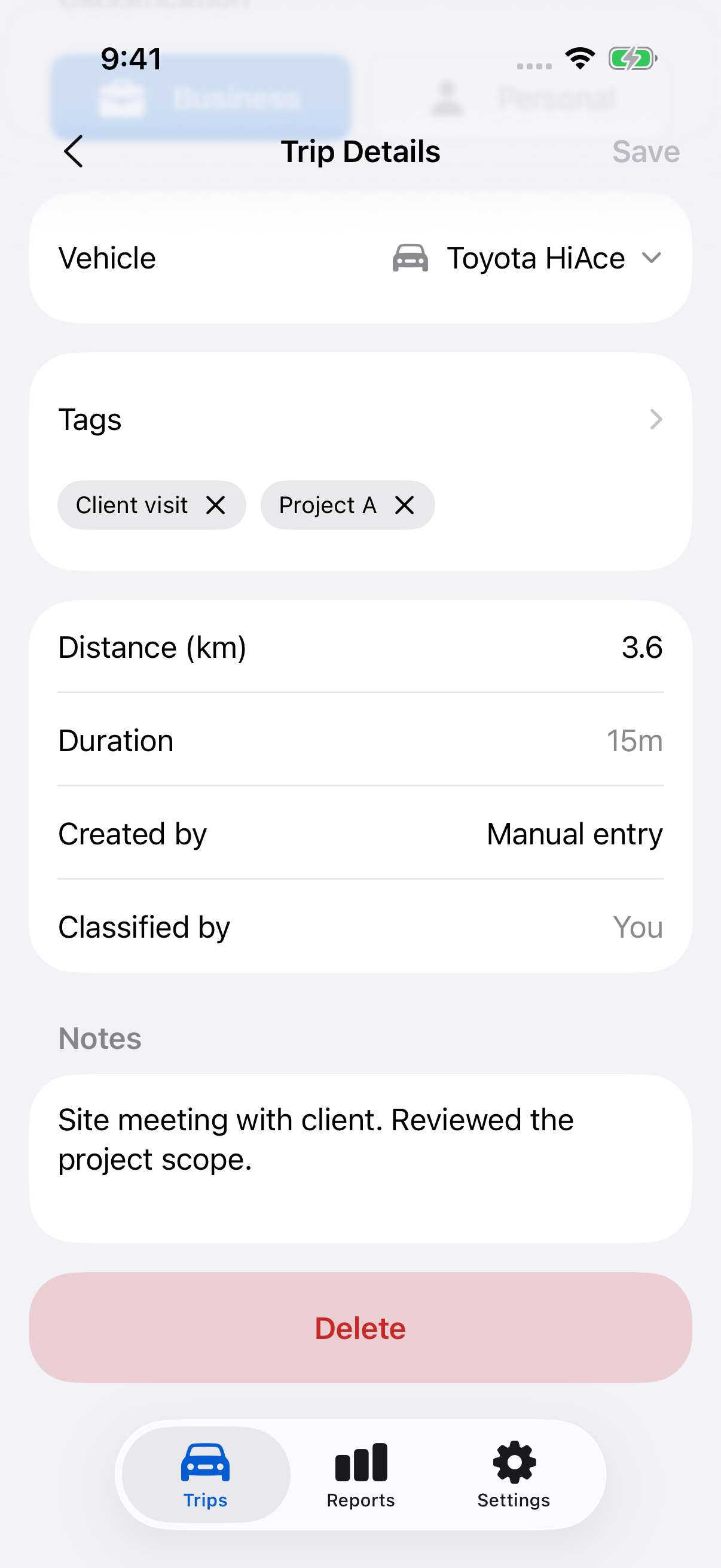
Describe the purpose clearly
For a Business trip, record enough context to recognise the work later. For example: “Visit to Northbridge client to measure the office fit-out.” Keep recurring labels such as a client or project in tags when useful.
A note does not change the trip’s classification. Check that separately.
Include notes in a report
Notes appear in Trip Detail Report, ATO Report and Custom Rate Report, in both PDF and CSV. Review the text before exporting or sharing a report.
Still need help?
If you can’t find what you’re looking for, we’re here to help.
Contact us