
Enter the journey
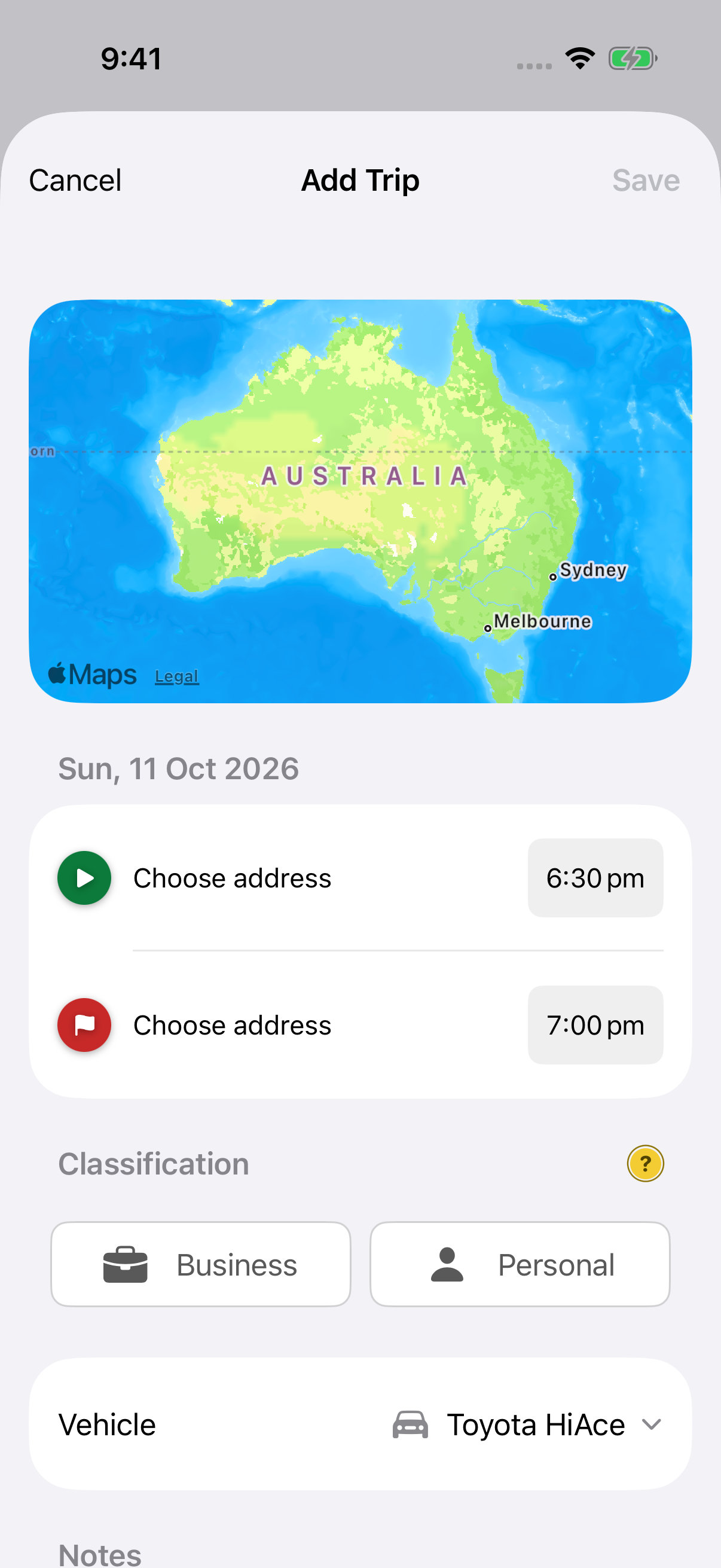
- Open Trips → Trip options → Add Trip.
- Select Start and Destination. Search for an address or choose a saved location. Choose different locations; Add Trip does not support circular journeys.
- When the driving routes appear, select the one that best matches your journey and tap Done. This sets the distance and fills the end time using the route’s estimated travel time and your current start time.
- Tap the start and end times to set the correct dates and times. The end must be after the start. Duration reflects the difference between these times. Choosing another route updates the distance and end time again.
Address search and route calculation need an internet connection. A calculated route is an estimate of a driving path, not a GPS recording of the journey.
Check the trip details
Choose Business or Personal, or leave the trip unclassified for later. Then check the Vehicle.
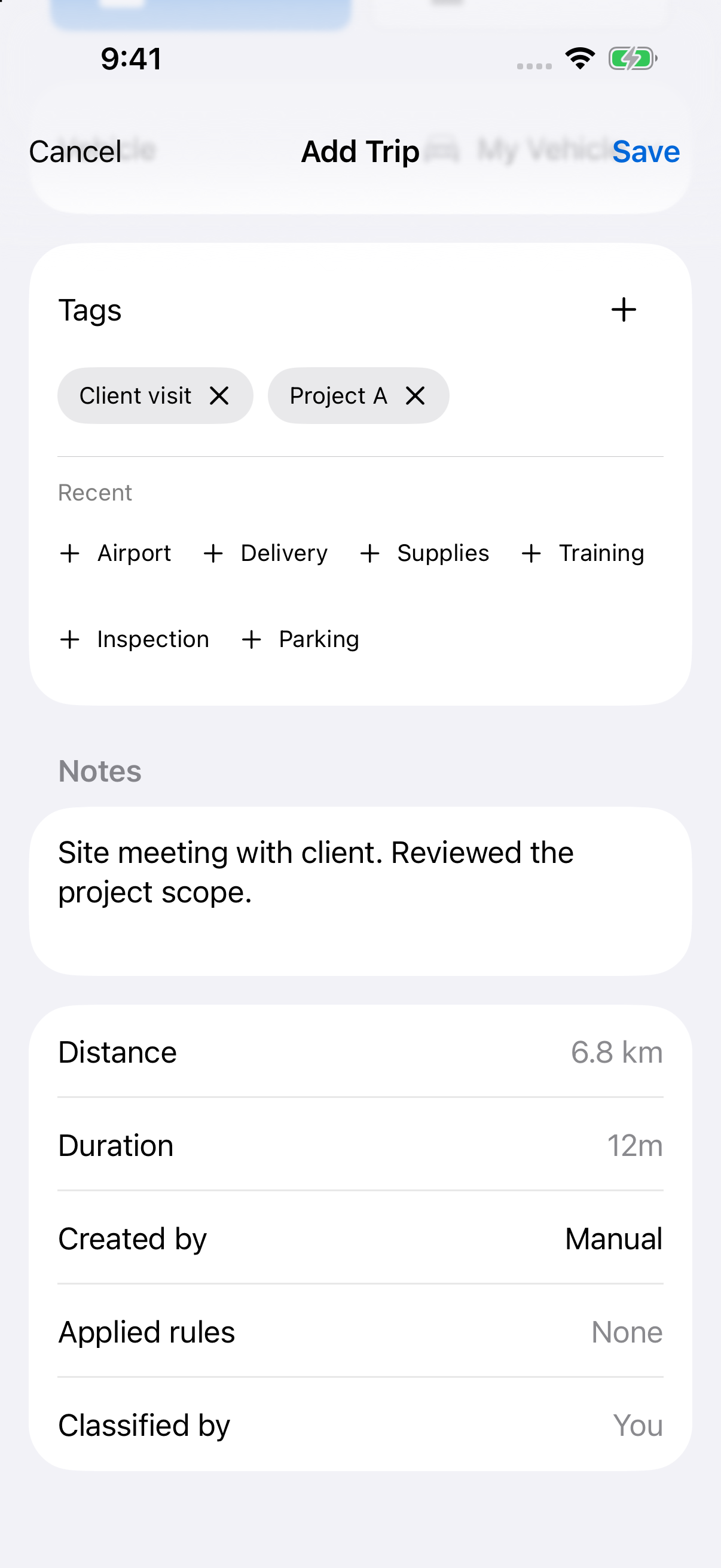
Under Tags, tap a Recent or Available tags suggestion to add it, or tap + beside Tags to search the full list. In the picker, select the labels and tap Done. To remove a selected tag, tap × beside its name. Your selection is kept when you save the trip; newly added tags are then remembered in Recent.
Add a note explaining the journey. For example, describe the client visit or work performed rather than writing only “Business”.
Below Notes, review Distance and Duration. These values are read-only: choose another route to change the distance, or edit the start and end times to change the duration. The same group shows Created by: Manual, Applied rules: None, and Classified by: You if you chose a classification, or Not classified if you left it unclassified.
Save and find the trip
Tap Save. Both endpoints, a selected route and valid times are needed before you can save.
Find the trip in the month of its start date. Open it to check Created by: Manual, review its tags and make further changes. Automation rules do not run on manual entries.
If the journey already exists, edit that trip instead of adding a duplicate.
Still need help?
If you can’t find what you’re looking for, we’re here to help.
Contact us