
Save a place
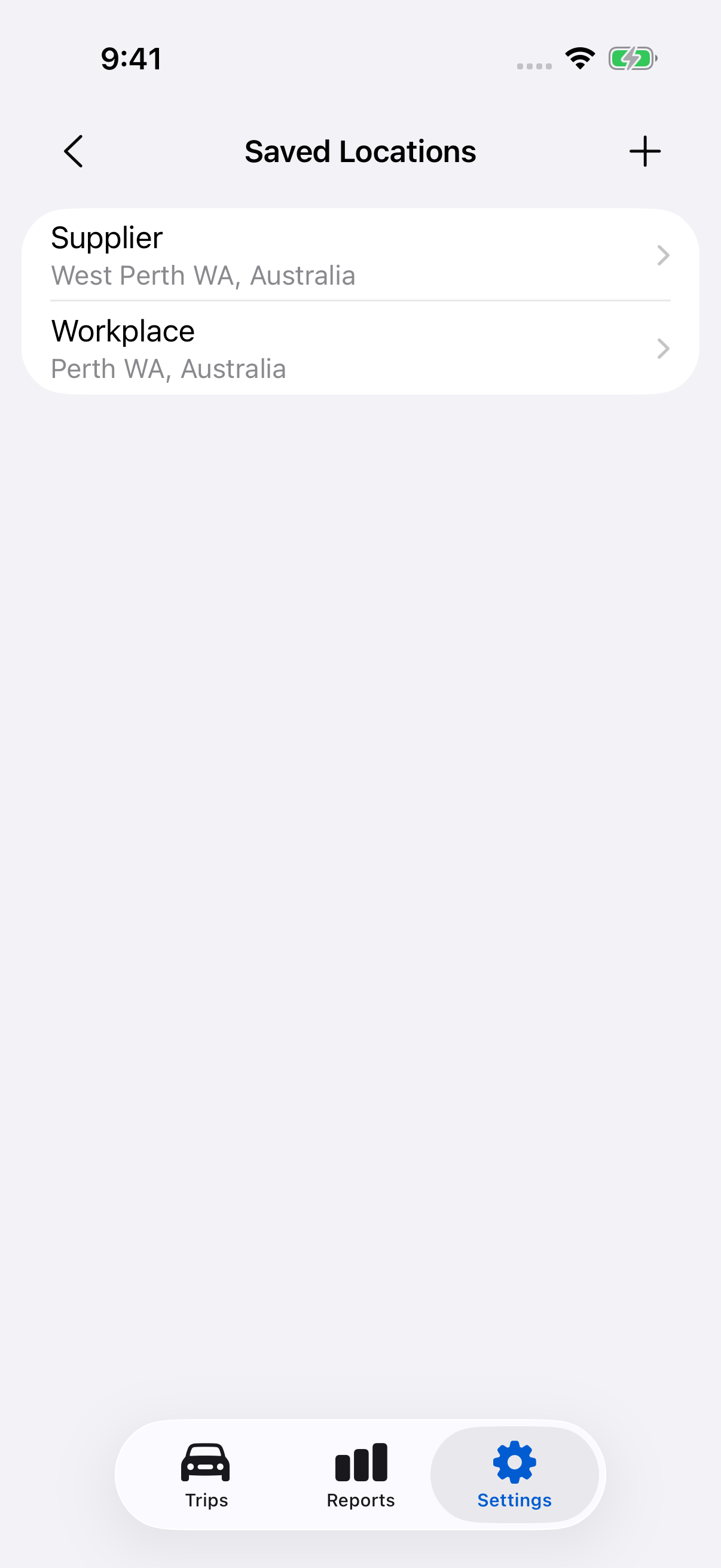
- Open Settings → Saved Locations.
- Tap +.
- Enter a name, such as “Workshop”.
- Search for its address and select the correct result.
- Tap Save.
New address searches need a connection. Once saved, the place is available offline.
Use a saved location
Choose a saved place when selecting an endpoint for a manual trip or correcting a trip.
In an automation rule, select the place and choose whether it matches the trip’s Start, End or Either endpoint. Saving a place by itself does not create a rule.
The saved name helps you choose the place. It does not replace the address labels shown on trip cards.
Edit or delete a place
Use Search saved locations at the top of the list to find a place by name or saved address, then tap it. Change its name or selected address and tap Save.
To remove it, tap Delete in the editor and confirm. A place used by a rule cannot be deleted until you change or delete that rule, including a disabled rule. Review affected rules when you change a saved place.
Still need help?
If you can’t find what you’re looking for, we’re here to help.
Contact us