
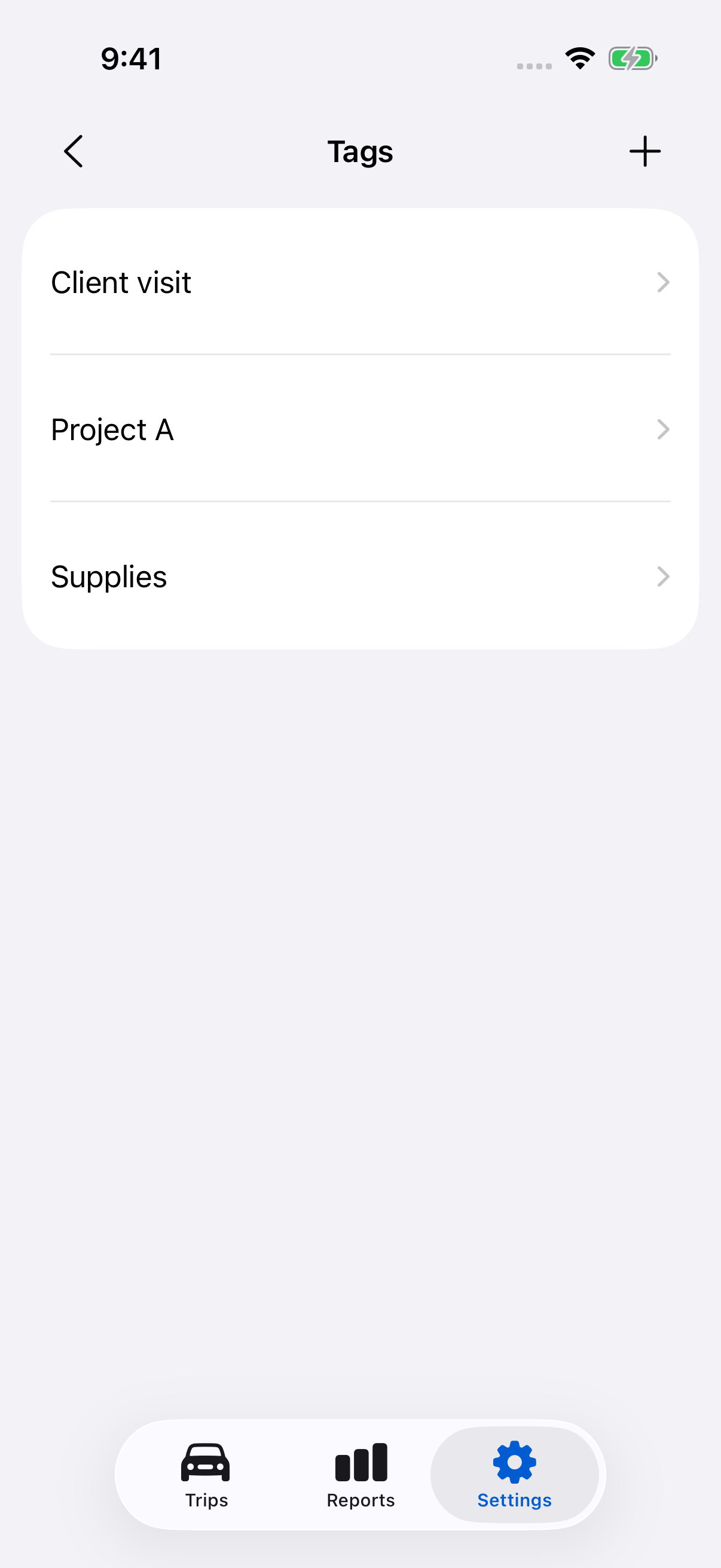
Create a tag
- Open Settings → Tags.
- Tap the + button.
- Enter a clear, unique name, such as a client or project.
- Tap Save.
Use Search tags at the top of the list to find an existing tag by name before creating another.
Add or remove trip tags
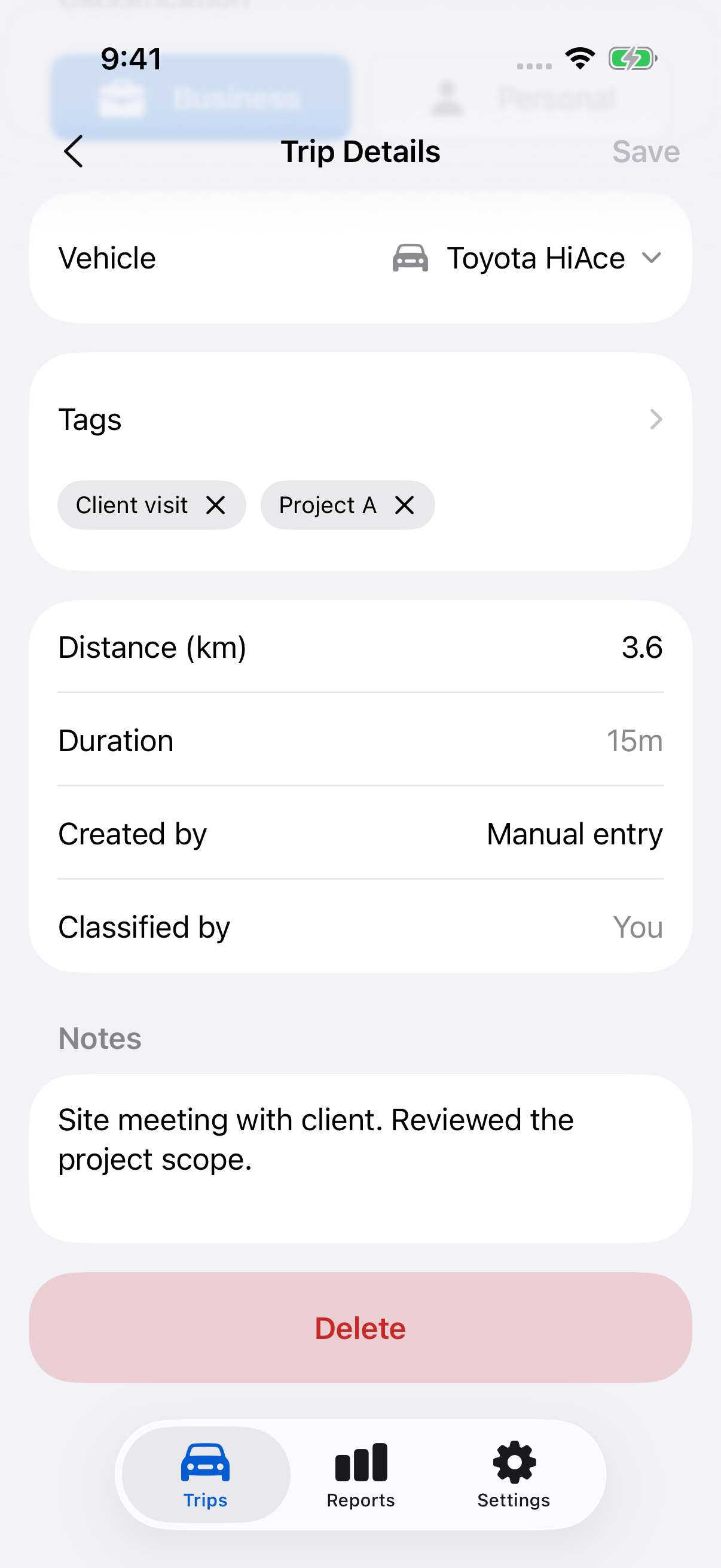
- Open a trip from Trips and scroll to Tags.
- Tap a tag under Recent or Available tags to add it. For other tags, tap + beside Tags, search or select from the full list, then tap Done to return to Trip Details.
- To remove a selected tag, tap × beside its name.
- Tap Save to save the trip.
The same Tags field is available in Add Trip and rule Actions. You can select several tags. The quick suggestions show only the tags that fit; + always opens the full list, including complete long names.
Recent remembers tags you have added yourself after you save the trip or rule on this iPhone, with the latest additions first. Tags already selected are left out, and the suggestion order stays steady while you edit. Tags added automatically by rules do not change Recent. Until you have recent additions, Available tags shows tags alphabetically.
New tag in the picker lets you create a label without leaving the task. Creating it saves the label to your tag list, even if you later cancel the picker or trip. Tap Done, then Save on the trip to keep its selection. If the field says No tags yet, tap + to reach New tag.
Tags supplement notes and classification. They do not change Business or Personal status.
Rename or delete a tag
Open Settings → Tags and tap a tag. Change its name and tap Save, or tap Delete and confirm.
Deleting removes the tag from trips but keeps the trips. A tag used by a rule cannot be deleted until you change or delete that rule, including a disabled rule. Historical Applied rules entries retain the tag name recorded when the rule ran.
Use tags in rules and reports
Automation rules can add tags to automatically or manually started recordings at completion. Trips entered with Add Trip are excluded. Tags from matching rules accumulate without duplicates.
All report types include Tags in PDF and CSV. The Trips screen filters by month and classification; it does not have a tag filter or bulk tagging control.
Still need help?
If you can’t find what you’re looking for, we’re here to help.
Contact us