
Select the period and trips
- Open Reports and tap the period at the top.
- Choose Month or Financial year, then select the period.
- Choose All vehicles or one vehicle, including an archived vehicle.
- Choose All trips, Business, Personal or Unclassified.
Cents/km and Logbook use the same period and filter choices.
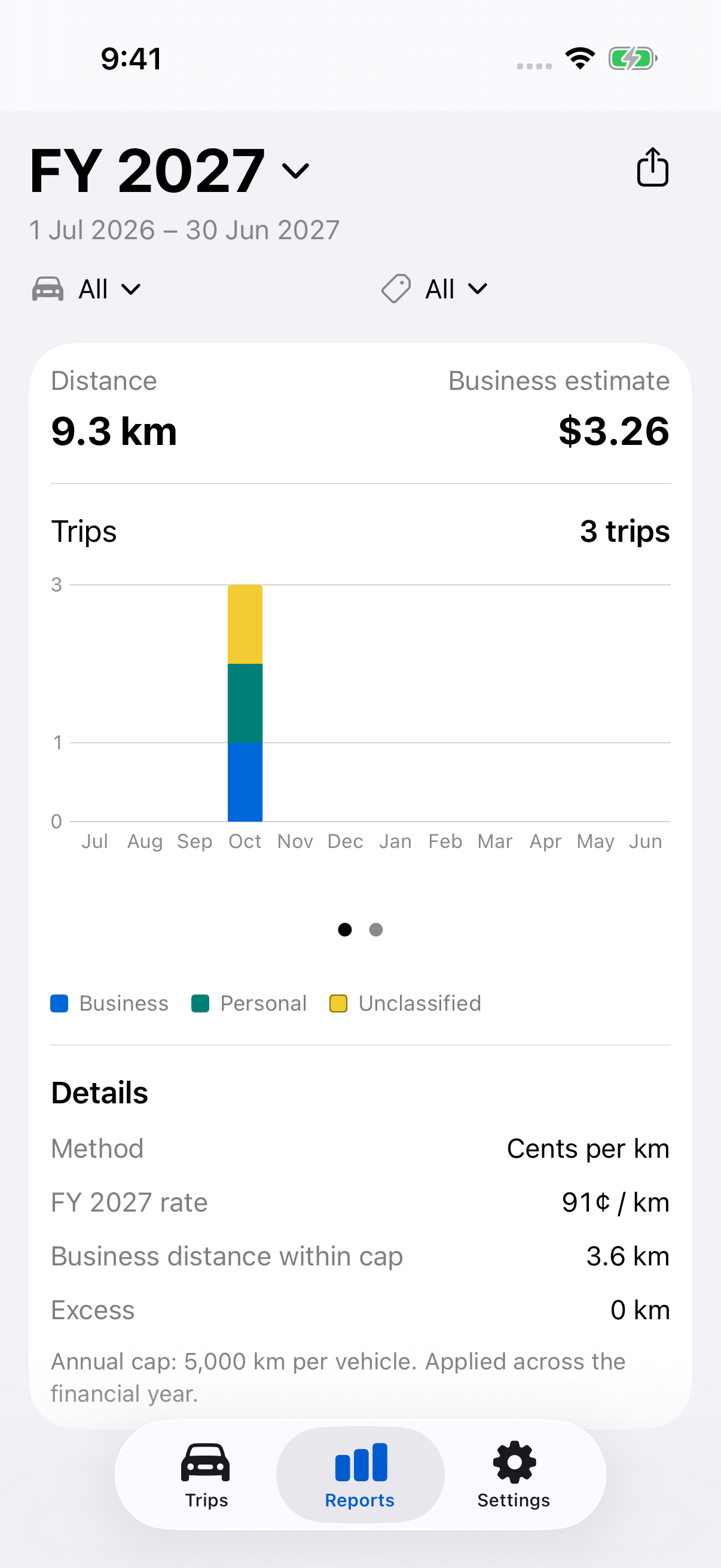
Reports includes completed trips in the selected period by their start date. It remembers its period separately from the Trips tab. A financial year covers the full 1 July–30 June range. Cents/km calculations use financial-year context even when you view a month.
Review the results
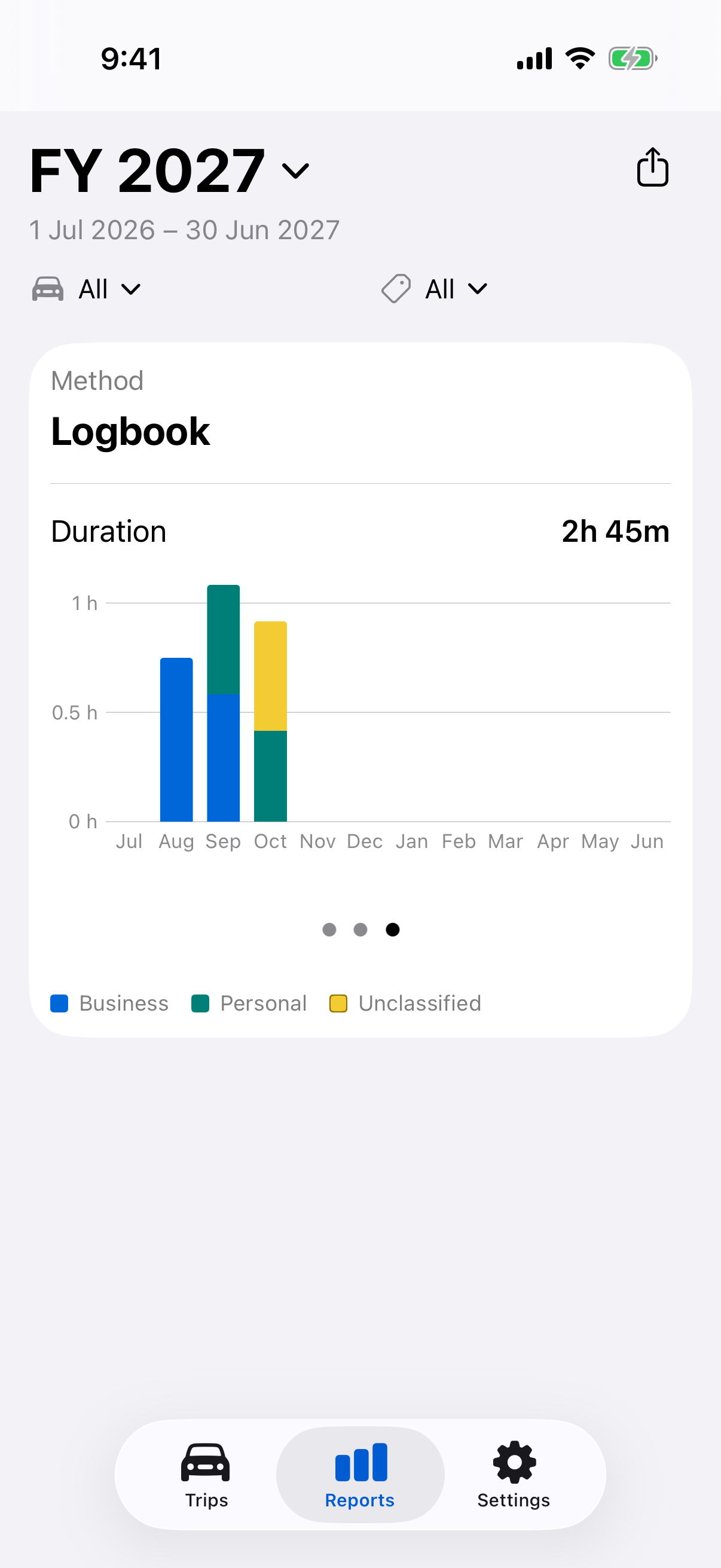
Swipe the activity chart between Trips, Distance and Duration. Each chart and its total follow the same filters. Duration is the elapsed time between each completed trip’s saved start and end, including stops, shown in hours and minutes.
The selected Method appears above the chart. Cents/km also shows an Estimate based on Business trips, with calculation details below the chart. Logbook has no dollar estimate or Details section. Use the Distance chart to see total distance, and choose Business in the classification filter to see Business distance or duration.
- Classify trips
Correct Business, Personal or Unclassified entries before exporting. - Record odometer readings
Save and correct actual readings in Vehicles, and distinguish them from estimates. - Change rates
Choose the method used throughout the app.
An unavailable value means the required data or rate is missing; it is not a zero.
Choose a report type
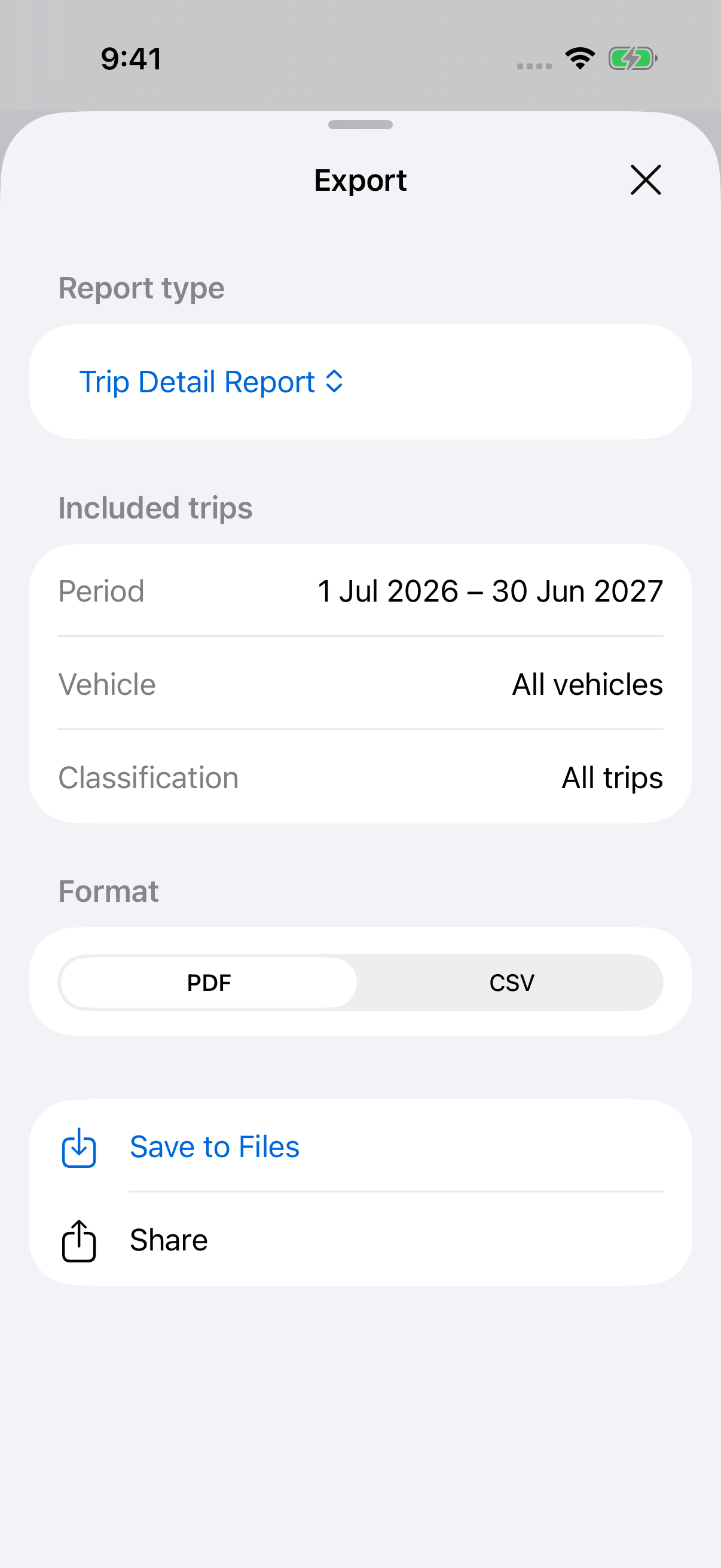
Tap the export icon at the top right, then choose Report type.
| Report | Contents |
|---|---|
| Trip Detail Report | Classification, start and end date/time, From, To, vehicle, registration, distance, Notes and Tags. |
| ATO Report with Cents/km | Trip details plus the rate and estimated value using the Australian method. |
| ATO Report with Logbook | Trip details plus estimated start and end odometers, with a summary of the selected trips. |
Trip Detail Report has 10 columns. ATO Report follows the Cents/km or Logbook method selected in Rates and adds two method-specific columns, for 12 columns. Both report types include Notes and Tags. Duration is available in the on-screen chart, rather than an export column.
Logbook odometer estimates use each vehicle’s complete trip history before the report filters are applied. Earlier trips and Personal trips still contribute to those estimates. Missing estimates appear as Unavailable in PDF and blank in CSV. The summary does not calculate a Business-use percentage or list actual period/annual readings.
For ATO reports, Report method → Change opens Rates. A change applies throughout LogMetric, so check the resulting method and filters again.
Save or share the export
- In Export, check Included trips: Period, Vehicle and Classification. Close Export to change those filters.
- Choose PDF for a formatted report or CSV for spreadsheet use.
- Tap Save to Files and choose a folder, or tap Share and choose a destination.
Export is unavailable when no completed trips match. Check the period and filters, and allow any current trip to finish.
Reports reflect the saved records and selected settings when generated. They are not restorable app backups. For logbook record-keeping, follow the 12-week guide and check the relevant ATO requirements before using a report for a claim.
Still need help?
If you can’t find what you’re looking for, we’re here to help.
Contact us